This module focuses on the tools, techniques, and best practices for effective communication in virtual environments. It covers video conferencing, online collaboration platforms, digital etiquette, and strategies for engaging remote audiences in academic settings.
Create Class Meeting #
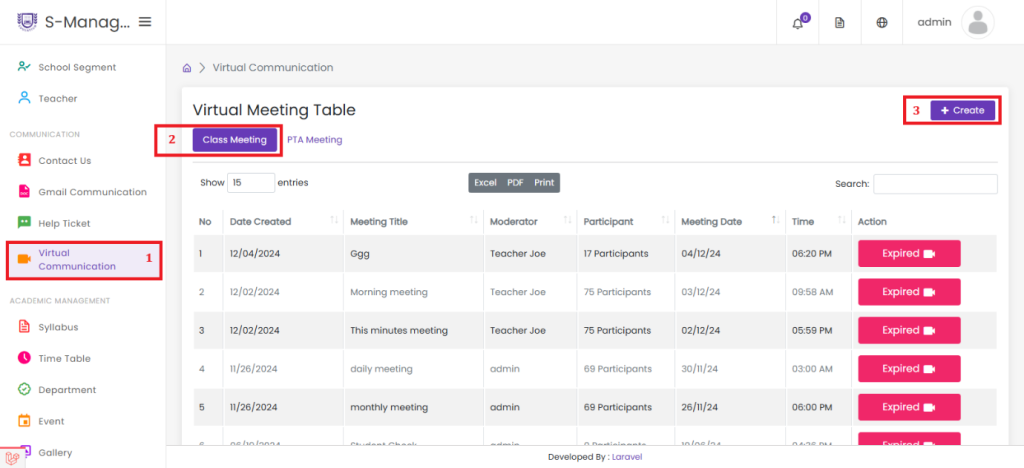
1.Click on Virtual Communication.
2.Click on Class Meeting to display the list of created class meetings in web tables.
3.Click on Create.
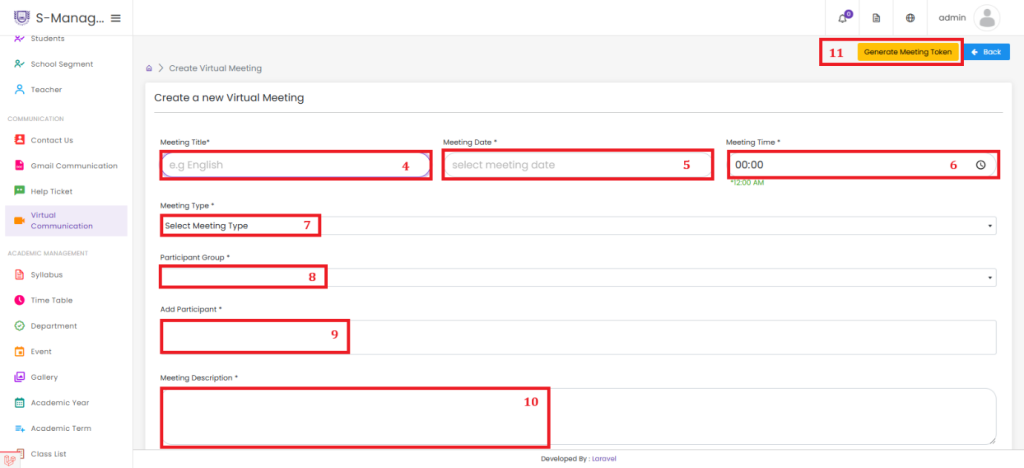
- Enter the Meeting Title.
- Choose the Meeting Date.
- Select the Meeting Time.
- From the list, choose Meeting Type as Class Meeting.
- Select the Participant Group; a new field will appear based on your selection.
- Select one or multiple Participants from the list.
- Enter the Meeting Description.
- Click to Generate the Meeting Token.
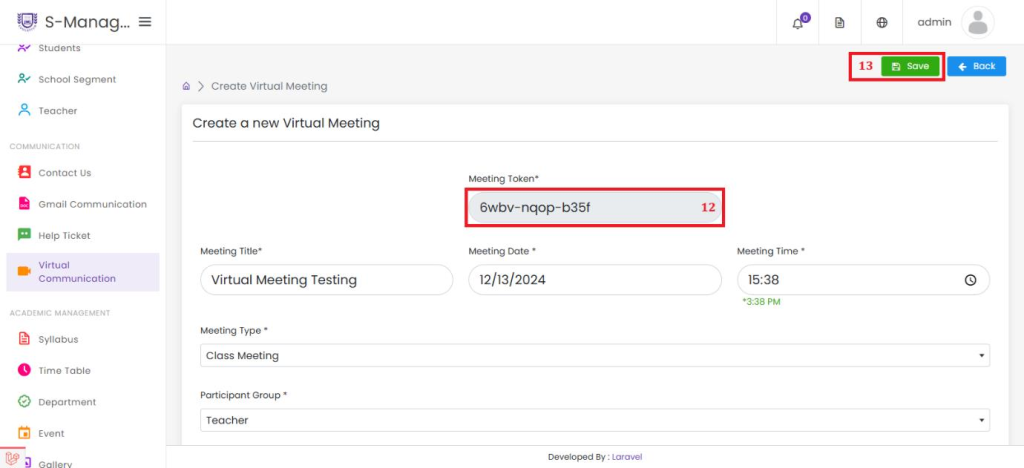
- The generated Meeting Token will appear and is not editable.
- Click Save to successfully create the virtual meeting.
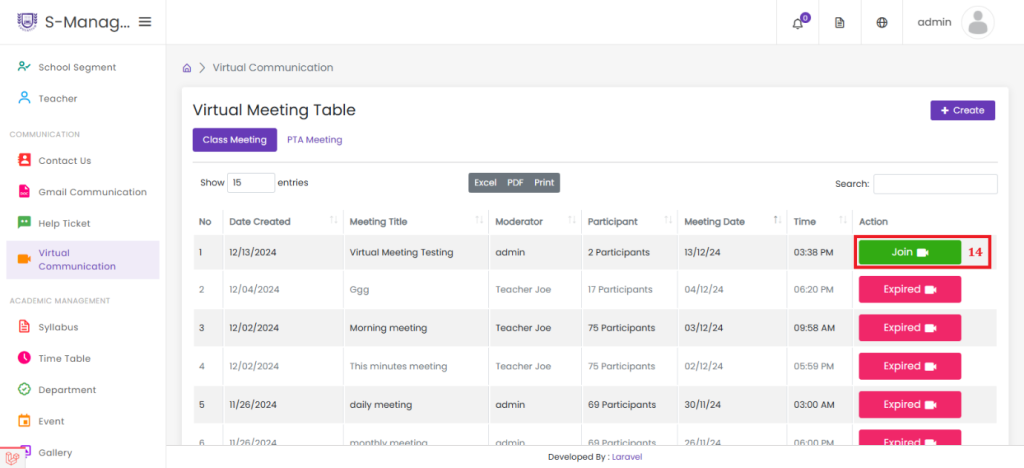
14.Click to Join the Class Meeting
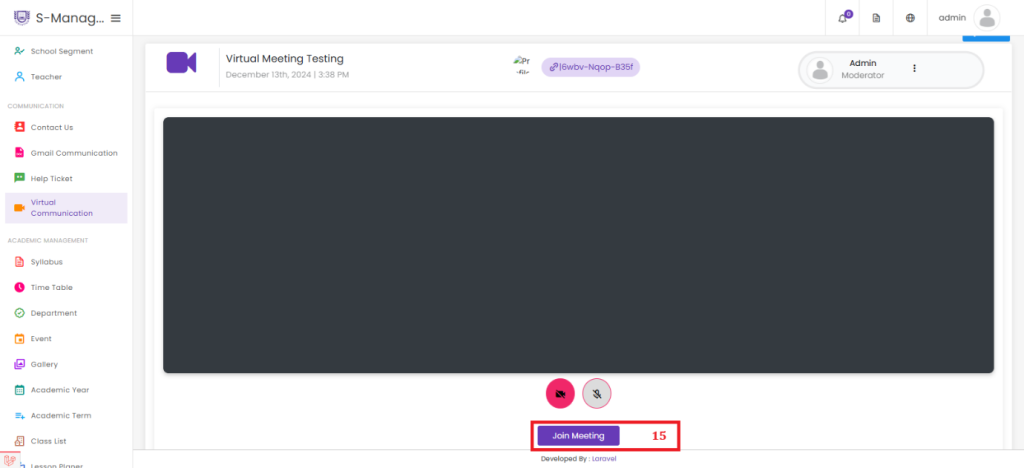
15.Click Join Meeting
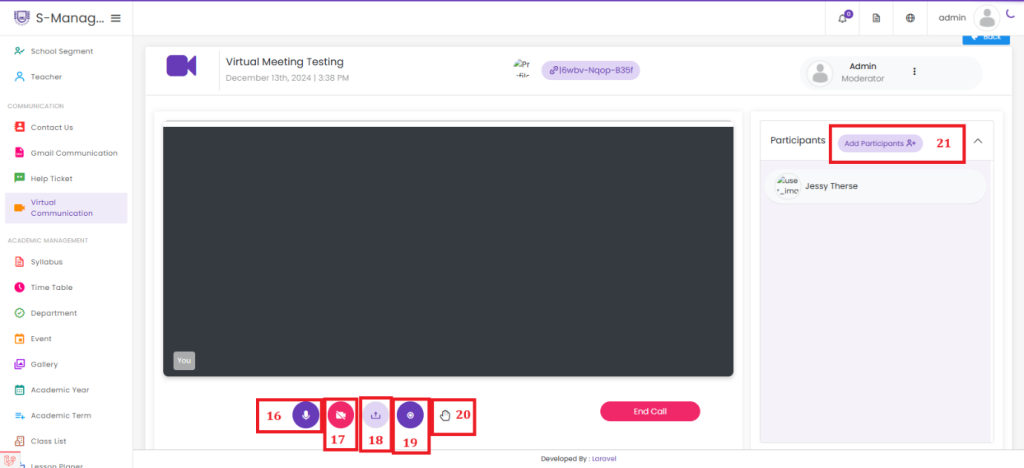
- Click to mute or unmute your audio.
- Click to mute or unmute your video.
- Click to share your screen with other meeting participants.
- Click to start recording the meeting.
- Click to raise your hand during the meeting.
- Click to add a participant to the meeting.
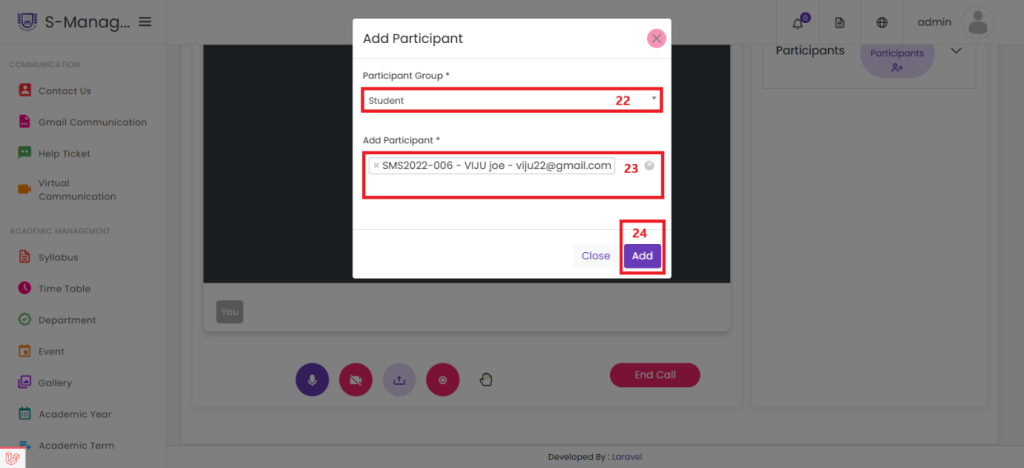
- Select the Participant Group from the list.
- Choose one or multiple Participants from the list.
- Click to add the selected participants.
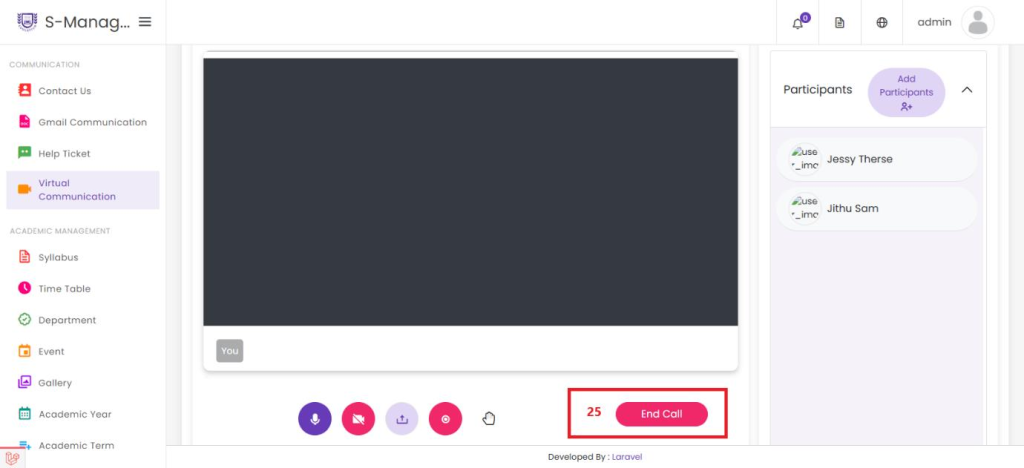
25.Click End Call to successfully end the virtual meeting.


