1. Enter the credentials: #
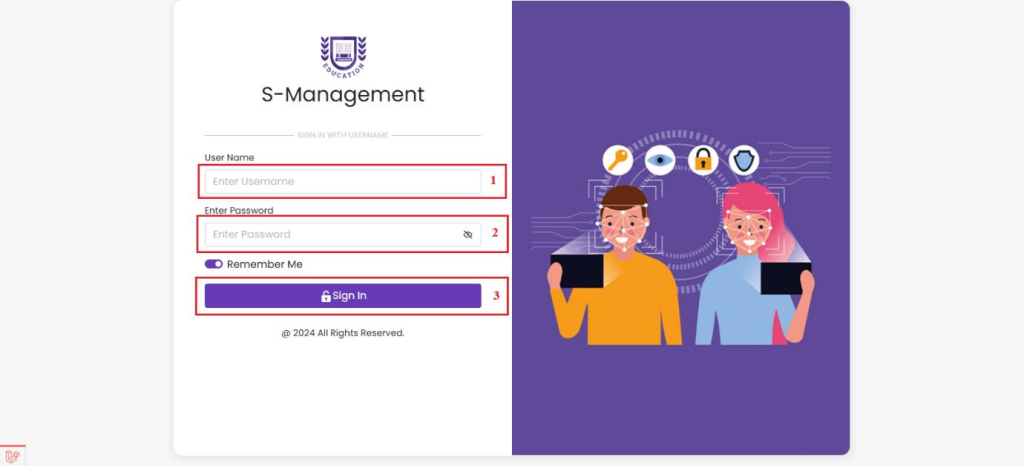
1.Enter User name
2.Enter the Password
3.Click Sign In
2. Welcome Page #

1. Click on Get Started Now Button to proceed.
3. Start Setup #

1. Fill in the input fields or correct any incorrect information.
2. Click the Next button to proceed to academic year setup.

1. Enter the Academic Year Name or Title (e.g., Gold).
2. Specify the Academic Year Range — the "From" and "To" years (e.g., 2025 to 2026).
3. Set the Start Date and End Date for the academic year. The selected dates must fall within the specified year range.
4. Click the Next button to proceed to academic term setup.

- Enter the Term Name
- Select the Start and End Dates for the academic term
- Enable the current academic term
- Click on "Next" to proceed to school segment.
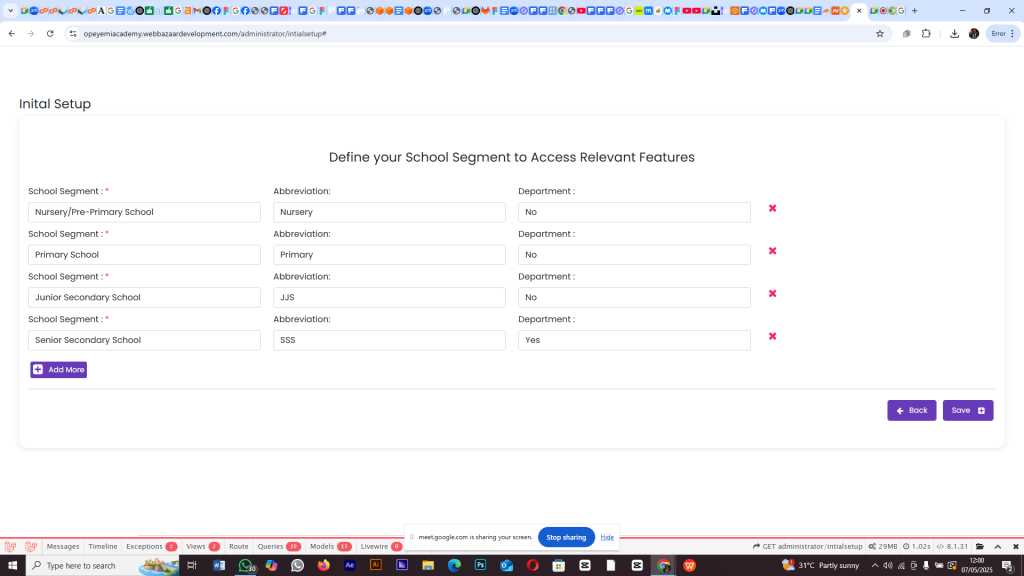
Note: Default school segments are provided, but you can edit or add new ones by following these steps:
- Enter the School Segment Name (e.g., Senior Secondary School)
- Enter the Abbreviation (e.g., SSS)
- Select "Yes" if the segment requires departments; otherwise, select "No"
- To add more segments, click the "Add More" button
- Click "Save" to complete the setup


