A revenue module is a system designed to manage and track an organization's income or revenue streams. It typically includes features for invoicing, billing, payment processing, revenue recognition, and reporting
Account Dashboard #

1.Open the Income Expense Accordion.
2.Select the Account Dashboard.
3.Choose the Academic Year to view the revenue details.
Create Income and Expense Category #
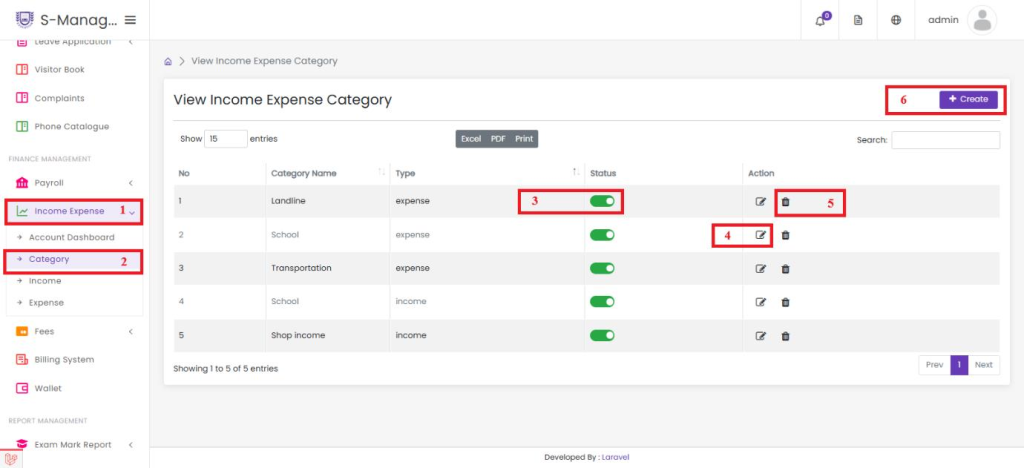
- Open the Income Expense Accordion.
- Select the Category option.
- Toggle to enable or disable the created category.
- Click to edit the created category.
- Click to delete the created category.
- Click to create a new category.

- Enter the name for the category.
- Select the category type, which includes options for Expense and Income.
- Provide a description for the category being created.
- Click Save to successfully create the category.
Create Income Details #
Before Creating Income details Created Category type with Income, You can do this from
Income Expense>Category

- Open the Income Expense Accordion.
- Select the Income option.
- Toggle to enable or disable the created income entry.
- Click to edit the existing income entry.
- Click to delete the created income entry.
- Click to create a new income entry.

- Select the academic year from the list.
- Enter the income title name.
- Choose the category name from the list.
- Enter the income amount.
- Select the date of the income.
- Provide a description for the income.
- Click Save to successfully create the income entry.
Create an Expense Details #
Before Creating Expense details Created Category type with Expense, You can do this
from Income Expense>Category

- Open the Income Expense Accordion.
- Select the Expense option.
- Toggle to enable or disable the created expense entry.
- Click to edit the existing expense entry.
- Click to delete the created expense entry.
- Click to create a new expense entry.
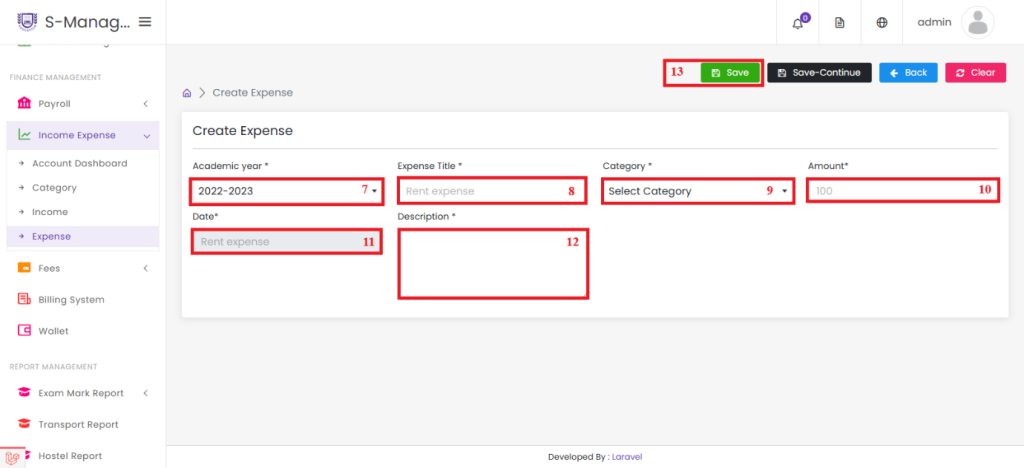
- Select the academic year from the list.
- Enter the expense title name.
- Choose the category name from the list.
- Enter the expense amount.
- Select the date of the expense.
- Provide a description for the expense.
- Click Save to successfully create the expense entry.


