The Daily Attendance Module allows for the daily recording and monitoring of attendance for students or employees. It simplifies marking present, absent, or late entries, and provides real-time attendance reports to help track punctuality and overall attendance trends efficiently.

1.Click to view the Daily Attendance Status for the selected academic year.
2.Click on Daily Attendance.
3.Select the Academic Year.
4.Choose the Academic Term.
5.Select the Class.
6.Select the Section.
7.Click the Get Students button to view the daily attendance status list.
8.The list will display each student’s daily attendance status, such as Present, Absent, or Late.
Daily Attendance for the Student #
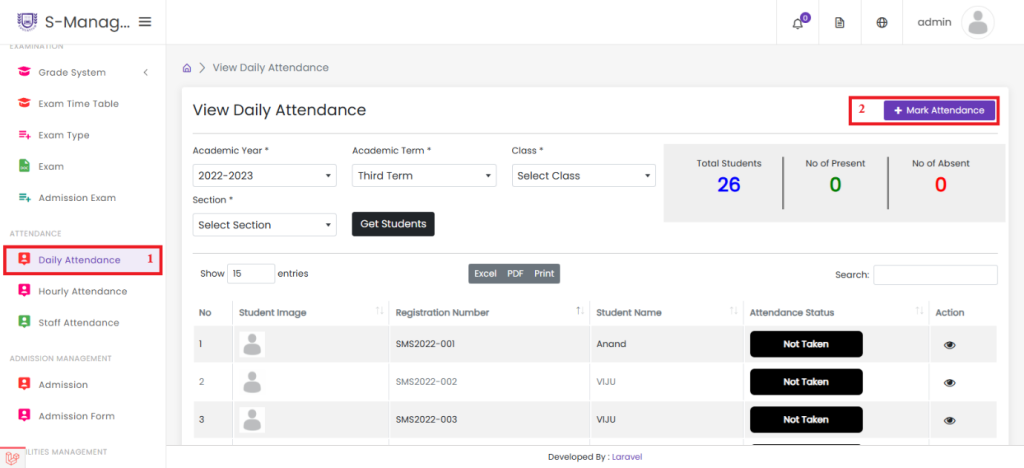
1.Click on Daily Attendance
2.Click on Mark Attendance to Create Daily Attendance of the Class

- Select the Academic Year.
- Choose the Academic Term.
- Select the Class.
- Select the Section.
- The current date is displayed and cannot be edited.
- Click the Get Students button.

9.Click Submit Entry to successfully record the daily attendance of the students..
10.Select the attendance status (Absent, Present, or Late) to apply the same status to all students.
11.Alternatively, select the attendance status individually for each student (Absent, Present, or Late).
Create Hourly Attendance for Student #

- Click on Hourly Attendance.
- Click Mark Attendance to record the hourly attendance for the class.

- Select the Academic Year.
- Choose the Academic Term.
- Select the Class.
- Select the Section.
- Click Continue to Enter Attendance.

- Select the Subject, which will open in a new tab.
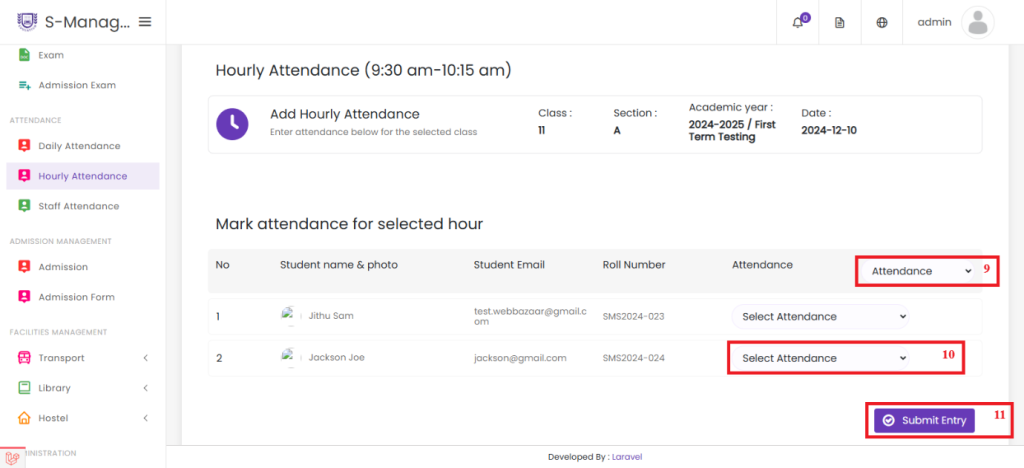
- Choose the attendance status (Absent, Present, or Late) to apply it to all students at once for the selected hour.
- Alternatively, select the attendance status individually for each student (Absent, Present, or Late).
- Click Submit Entry to successfully record the hourly attendance of the students.


